Calculate commission for your Sales Agent(s) if your Sales Agent(s) have a user account(s) in Zedonk
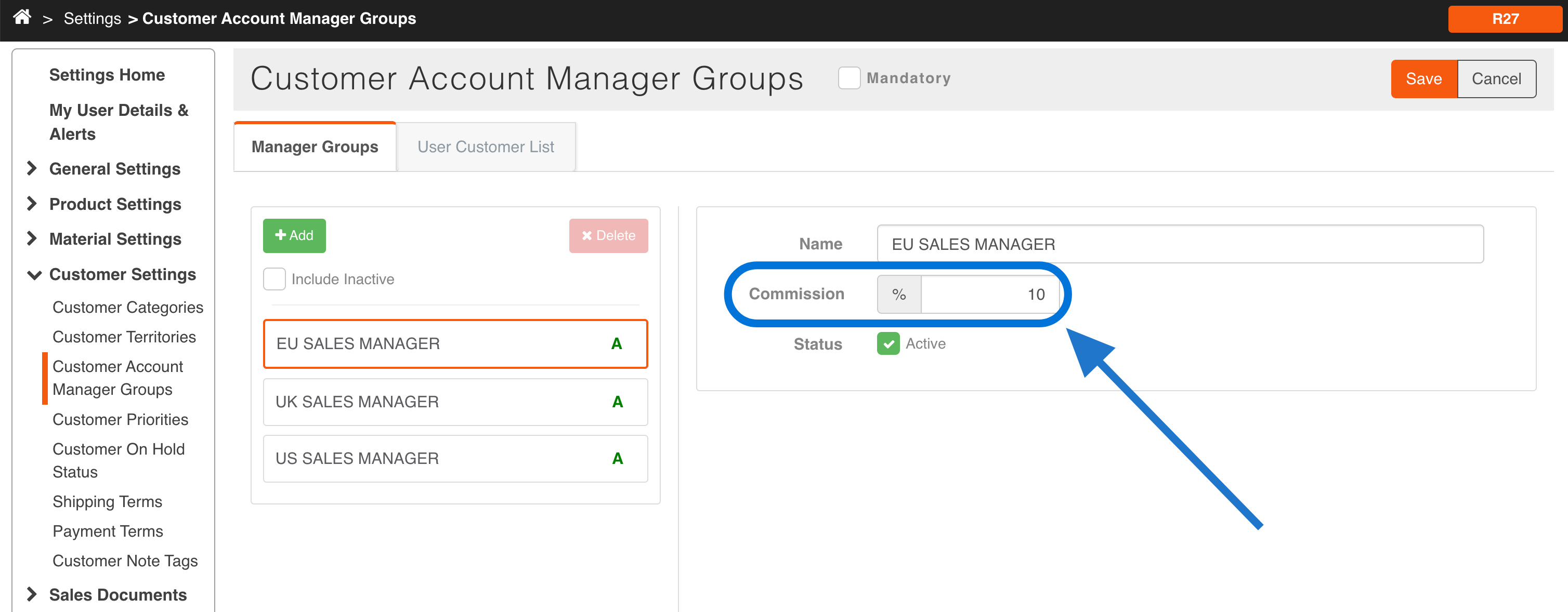
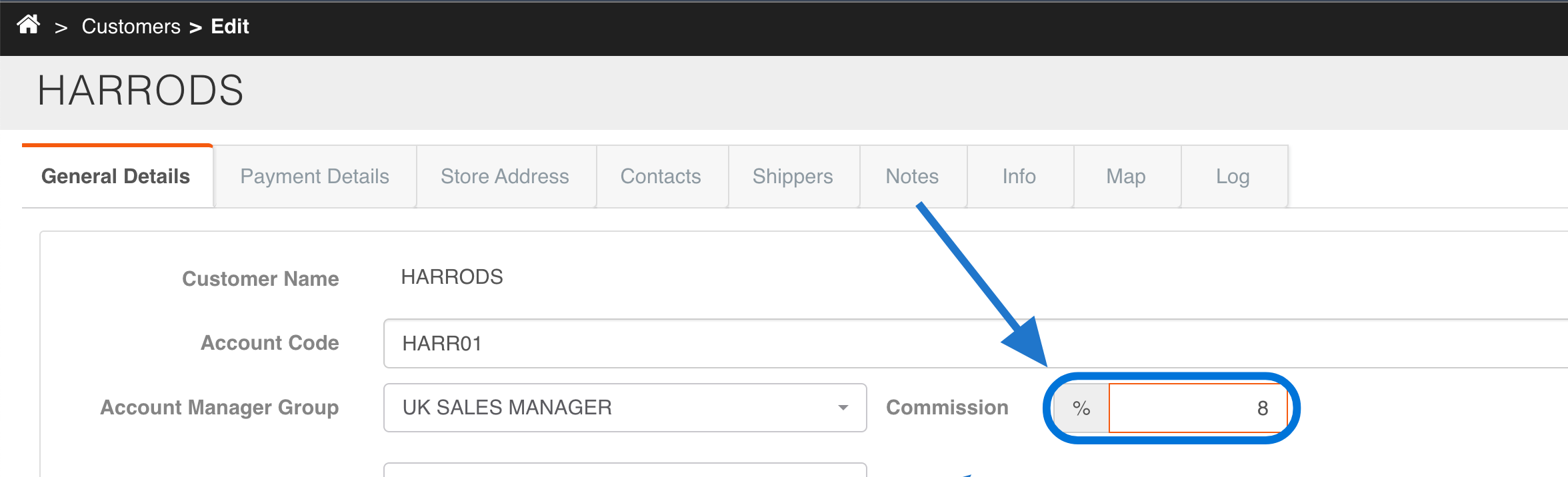
When creating Customers or Customer Account Manager Groups on Zedonk, you will notice a Commission field where you can determine the commission % for your Sales Agent.
Enter the appropriate commission value for each Customer Account Manager Group:
Enter the appropriate commission value for each Customer, if required:
After your Sales Agent creates Sales Orders within your Zedonk, these Sales Orders will be associated with their user account (Order Owner).
Within the Reports module, open and display the following report:
- System Reports > Sales > Order Tracker > Commission Value
You can filter the report to focus on a specific Sales Agent. Enter the Sales Agent username in the Order Owner column, then click on the funnel icon and choose the 'EqualTo' option. The report will take a few seconds to update and display records. Scroll to the right to view Commission Value and Commission Value After Discount.
Note that the Commission will display positive values for Invoices and negative values for Credit Notes generated within Zedonk.
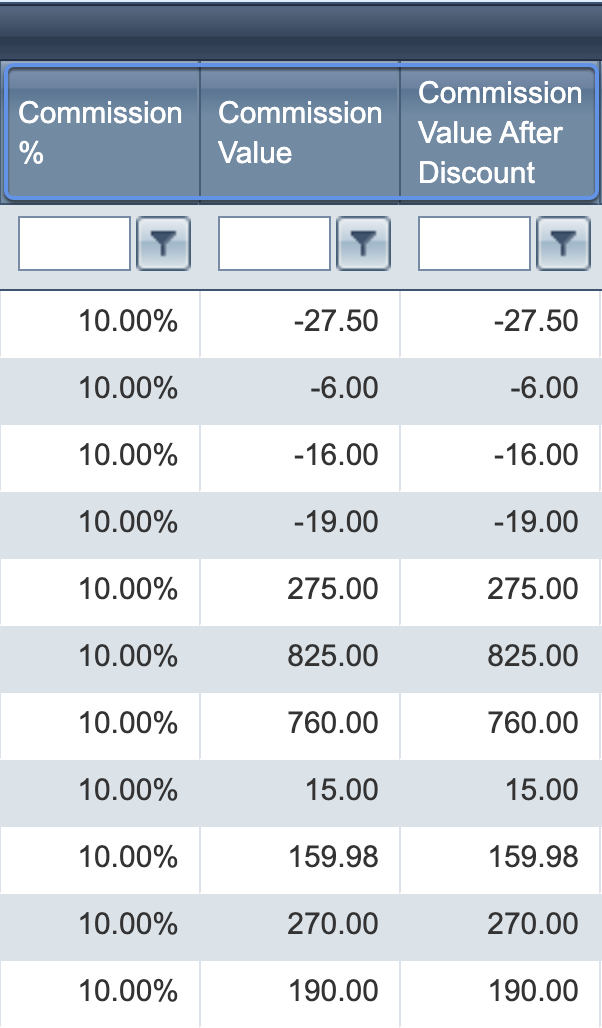
To calculate the totals for your Sales Agent(s), export the report and calculate the total using the AutoSum function in your spreadsheet editor (Excel, Google Sheets, etc.) for relevant columns (for example Commission Value After Discount).
Calculate commission for your Sales Agent(s) if your Sales Agent(s) do not have a user account(s) in Zedonk
If your Sales Agent(s) do not have user accounts in Zedonk, you can manually calculate commission for your Sales Agents by utilising the Account Manager Group field on your Customer records.
Firstly, go to your System Settings > Customer Settings > Customer Account Managers and enter your Sales Agent Names and their commission percentage as per the example below.
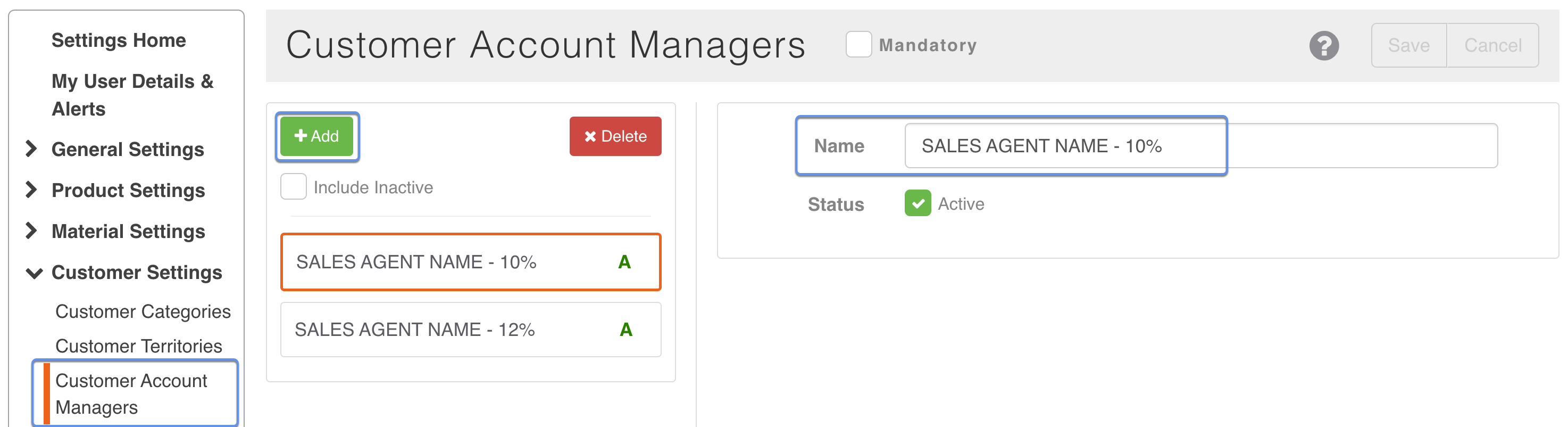
Go to your Customers module and ensure that your Customer records have the appropriate Sales Agent Name - Percentage option selected.
After Sales Orders and Invoices are entered within your Zedonk, you can calculate the commission for your Sales Agent.
Within the Reports module, open and display the following report:
- System Reports > Sales > Order Tracker > Full Invoice/Credit
You can filter the report to focus on a specific Sales Agent. Enter the Sales Agent Name in the Account Manager column, then click on the funnel icon and choose the 'EqualTo' option. The report will take a few seconds to update and display records. Scroll to the right to view the Sub Total column.
Note that the Sub Total column will display positive values for Invoices and negative values for Credit Notes generated within Zedonk.
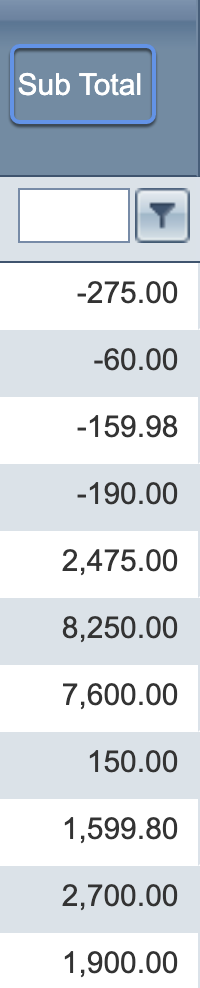
To calculate the totals for your Sales Agent(s), export the report and calculate the total using the AutoSum function in your spreadsheet editor (Excel, Google Sheets, etc.) for relevant columns (for example Sub Total).